Switching from GoGuardian: A Migration Checklist for IT Directors
GoGuardian renewal coming up? Here's a complete migration checklist — from policy export to 2-week parallel pilot — so you can switch web filters without disruption.
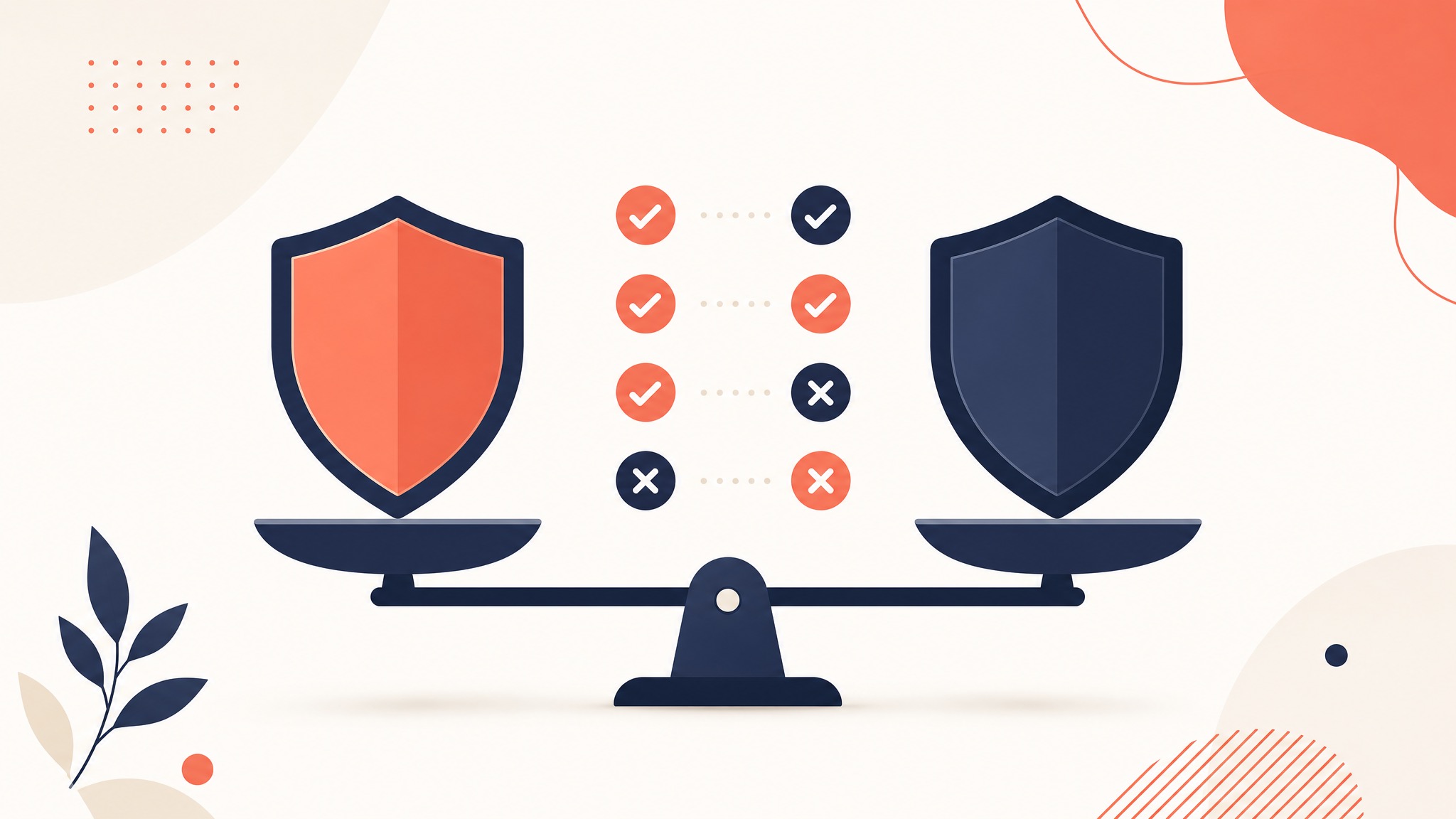
GoGuardian renewal notices are landing in inboxes across the country. If you're an IT director staring at a renewal quote that's 15–30% higher than last year — or you've been fielding complaints about iPad battery drain, game bypasses, and coverage gaps — this is the guide you need.
Switching web filters mid-cycle feels risky. It doesn't have to be. We've helped dozens of districts migrate from GoGuardian to KyberGate, and we've distilled the process into a repeatable 2-week checklist.
This isn't a sales pitch. It's a practical migration playbook. Whether you switch to KyberGate or another solution, this checklist will make the transition smooth.
Signs It's Time to Switch
Before committing to a migration, make sure the pain points are real and recurring — not just a bad week.
You should seriously consider switching if:
-
Battery drain complaints are constant. GoGuardian's on-device agent draws 10–20% battery on iPads and laptops. If teachers are reporting dead devices by 2 PM, that's not a device problem — it's a filtering architecture problem.
-
iPad coverage has gaps. GoGuardian's agent approach on iOS is limited by Apple's sandboxing. Students on iPads may not get the same level of HTTPS inspection as Chromebook users. If you're a mixed-device district, you're running two different levels of protection.
-
Pricing keeps climbing. GoGuardian doesn't publish pricing, but renewal quotes commonly land between $8–15/device/year for bundled products (Admin + Beacon + Teacher). If your per-device cost has increased 20%+ since your initial contract, that tracks with what we hear from other districts.
-
Students are bypassing filters. Browser extensions can be disabled. VPN apps can tunnel around agent-based filtering. If your students are sharing bypass techniques on Discord and TikTok (they are), an agent-based architecture has a structural disadvantage against a proxy-based one.
-
You need Google Workspace content monitoring. GoGuardian Beacon monitors browsing activity, but not what students write in Google Docs, Gmail, or Drive. If you need content-level safety monitoring inside G Suite, that's a gap.
-
Reporting is too basic. If you're pulling CSV exports and building your own dashboards to answer board questions, your filter isn't doing enough.
Honest note: If you're a Chromebook-only district and GoGuardian is working well for you, switching may not be worth the effort. GoGuardian's Chrome extension is excellent on Chromebooks. This guide is most relevant for mixed-device districts, iPad-heavy schools, or districts where cost and coverage gaps are real problems.
Pre-Migration Checklist
Before you touch a single device, do this groundwork. Skipping these steps is the #1 cause of messy migrations.
1. Audit Your Current GoGuardian Configuration
- Export your policy list — document every filtering policy (by OU, grade level, user group)
- Export your allow/block lists — every custom domain you've added
- Document your YouTube restrictions (restricted mode settings, channel allowlists)
- Screenshot your category filter settings (which categories are blocked per policy)
- Note any time-based rules (policies that change during/after school hours)
- List any GoGuardian Teacher classroom configurations
- Export your Beacon alert settings and escalation contacts
- Document your OU structure in Google Admin — KyberGate maps to the same OUs
2. Inventory Your Device Fleet
- Total device count by platform (Chromebooks, iPads, Windows, Mac)
- Total user count (students vs. staff — staff often need different policies)
- MDM platform (Jamf, Mosyle, Google Admin, Intune)
- Identify test group — 20–30 devices across platforms for the parallel pilot
3. Gather Stakeholder Requirements
- IT team: technical requirements, integration needs, reporting expectations
- Administrators: what data do they need for board reports?
- Teachers: what classroom management features do they use daily?
- Counselors/SROs: what safety alert workflows are in place?
- Parents: any parent portal or notification requirements?
4. Document Your Compliance Requirements
- CIPA compliance requirements (E-Rate funded? Confirm SPIN number)
- State-specific requirements (e.g., NYSED FAMIS, TX HB 3, CA AB 1584)
- Board-mandated reporting (what reports go to the board and how often?)
- Student data privacy agreements (review DPA requirements)
5. Budget and Procurement
- Current GoGuardian contract end date and auto-renewal deadline
- Cancellation notice period (typically 30–60 days before renewal)
- KyberGate pricing for your fleet size:
- Basic (web filtering + game blocking): $5/device/year
- Pro (+ student safety monitoring): $9/device/year
- Enterprise (5,000+ devices): custom pricing
- E-Rate eligibility check (KyberGate SPIN: 143055219)
The 2-Week Migration Timeline
This timeline assumes you've completed the pre-migration checklist above. Adjust for your district's size — larger districts (5,000+ devices) should add a third week for phased rollout.
Week 1: Setup and Parallel Deployment
Day 1–2: KyberGate Account Setup
- Create your KyberGate organization
- Import user roster (CSV upload or Google Workspace sync)
- Configure your OU/group structure to mirror GoGuardian policies
- Set up admin accounts for your IT team
Day 3–4: Policy Configuration
- Recreate your filtering policies in KyberGate using your exported GoGuardian config
- Import custom allow/block domain lists
- Configure category filters per policy group
- Set up time-based rules (school hours vs. after hours)
- Enable game detection engine (on by default — review the 8-layer settings)
Day 5: Test Group Deployment
- Deploy KyberGate to your 20–30 test devices via MDM
- For iPads: push the PAC proxy profile through Jamf/Mosyle
- For Chromebooks: deploy the KyberGate extension via Google Admin
- For Windows/Mac: push PAC configuration via MDM or GPO
- Keep GoGuardian running on these devices simultaneously — both solutions work in parallel
Day 6–7: Validation
- Verify filtering is working on all test platforms
- Test your allow/block lists — confirm custom domains are handled correctly
- Verify game blocking catches the games your students play
- Test safety monitoring alerts (if using KyberGate Pro)
- Have a teacher test classroom management features
- Compare GoGuardian and KyberGate logs side-by-side on the same devices
Week 2: Expansion and Cutover
Day 8–10: Expand Pilot
- Roll KyberGate out to 100–200 devices across representative groups
- Include multiple grade levels, device types, and policy groups
- Monitor for any blocked-site false positives
- Adjust policies based on real traffic (KyberGate's AI categorization handles most edge cases)
Day 11–12: Full Deployment
- Push KyberGate MDM profiles to all devices
- Keep GoGuardian active during this phase (belt and suspenders)
- Verify all policy groups are filtering correctly at scale
- Confirm reporting dashboards show expected data
Day 13–14: GoGuardian Removal
- Disable GoGuardian agent/extension across your fleet
- Remove GoGuardian MDM profiles
- Confirm KyberGate is the sole active filter on all devices
- Run a final validation sweep — check 10 devices per platform
- Send confirmation to your GoGuardian rep (if cancelling at renewal)
Pro tip: Don't rush Day 13–14. Keep GoGuardian and KyberGate running in parallel for the full 2 weeks. This gives you a safety net and real comparison data. If anything goes wrong, you can roll back instantly.
Feature Mapping: GoGuardian → KyberGate
Here's where your GoGuardian features land in KyberGate:
| GoGuardian Feature | KyberGate Equivalent | Notes |
|---|---|---|
| Web filtering (Admin) | Web filtering (all plans) | Proxy-based vs. agent-based |
| Category blocking | Category blocking | 60+ categories, AI-powered |
| Custom allow/block lists | Custom allow/block lists | Bulk CSV import supported |
| YouTube restrictions | YouTube filtering | Category + channel level control |
| GoGuardian Teacher (screen view) | Teacher Portal (live view) | Real-time screen monitoring |
| GoGuardian Teacher (push URL) | Teacher Portal (push URL) | Send links to student devices |
| GoGuardian Teacher (lock screens) | Teacher Portal (lock/message) | Lock devices, send messages |
| GoGuardian Teacher (focus mode) | Focus Mode | Restrict to specific sites |
| GoGuardian Beacon (safety alerts) | KyberPulse (Pro plan) | Broader: monitors Google Workspace content |
| Beacon escalation contacts | KyberPulse alert routing | SMS + email to counselors, SROs |
| Activity reports | Activity Dashboard | Real-time with hourly charts |
| Usage analytics | Analytics + AI scoring | Includes behavioral risk scores |
| Smart Alerts | KyberPulse 17-category detection | 4 severity levels, 40+ slang terms |
| Parent notifications | Parent Portal (roadmap) | Coming Q4 2026 |
| Student timeline | Student Activity Timeline | Per-student browsing history |
| Chrome extension filtering | Chrome extension + PAC proxy | Dual-layer on Chromebooks |
| iOS agent | PAC proxy (MDM-deployed) | No agent needed — zero battery impact |
| Windows/Mac agent | PAC proxy + optional agent | Agent optional, not required |
What You'll Gain (That GoGuardian Doesn't Offer)
-
True iPad MITM filtering — full HTTPS inspection at the proxy level, not limited by iOS sandboxing. Every URL, every page, every embedded resource inspected.
-
8-layer game detection — goes far beyond domain blocking. Catches games on Google Sites, GitHub Pages, and newly created mirror sites in real-time.
-
AI-powered chat monitoring — detects concerning language in Google Docs, Gmail, and Drive. GoGuardian Beacon monitors browsing; KyberPulse monitors content creation.
-
Zero battery impact — filtering happens in the cloud, not on the device. No agent running, no CPU drain, no battery complaints.
-
Transparent pricing — $5–9/device/year, published on the website. No "contact sales" for a quote. No surprise renewal increases.
-
Proxy-based bypass resistance — the PAC proxy can't be uninstalled, disabled, or bypassed by students. No VPN workarounds, no extension toggles, no safe mode exploits.
What's Different (Honest Differences)
We don't think every GoGuardian feature maps perfectly to KyberGate. Here's what's genuinely different:
Architecture is fundamentally different. GoGuardian uses on-device agents/extensions. KyberGate uses a cloud proxy. This means:
- KyberGate requires PAC proxy configuration via MDM (one profile push)
- GoGuardian requires per-device agent installation
- KyberGate filtering depends on proxy connectivity; GoGuardian can filter offline
- Off-network filtering works differently — KyberGate's proxy works anywhere with internet access, but requires the PAC profile to be active
GoGuardian has a larger support community. They've been around since 2014 and have a massive installed base. KyberGate is newer. Our support is responsive (most tickets resolved same-day), but you won't find as many forum posts or community resources yet.
Parent portal is on our roadmap, not shipping today. GoGuardian offers parent notifications. KyberGate's parent portal is planned for Q4 2026. If parent-facing features are critical for your deployment, factor this in.
GoGuardian Teacher is more mature. Their classroom management tool has been iterated on for years. KyberGate's Teacher Portal covers all the core features (screen view, push URL, lock, focus mode), but GoGuardian Teacher has more polish and edge-case handling.
Offline filtering. GoGuardian's agent can enforce some policies when a device is offline. KyberGate's proxy architecture requires internet connectivity to filter. For take-home devices on home Wi-Fi, KyberGate works normally. For devices completely offline (airplane mode), filtering is paused until reconnection.
Our philosophy: We'd rather be honest about what's different than have you discover it after deployment. These differences are real, and for some districts, they matter. For most districts we talk to — especially those with iPads, budget pressure, or game/bypass issues — the trade-offs favor KyberGate.
Timing Your Switch
GoGuardian renewal windows typically fall July–September for most school districts. Here's the optimal timeline:
- May–June: Do your research. Run this checklist. Request a KyberGate pilot.
- June–July: Run a 2-week parallel pilot (KyberGate + GoGuardian side by side).
- July–August: Make your decision. Send cancellation notice to GoGuardian if switching.
- August–September: Full deployment before students return. Clean cutover during summer break.
If you're reading this in late June: You still have time. The 2-week pilot fits within your summer window. Most districts complete the full migration in 3 weeks including the pilot.
Critical deadline: Check your GoGuardian contract for auto-renewal clauses. Most contracts auto-renew 30–60 days before the end date. Missing the cancellation window locks you in for another year.
Your Next Step
The lowest-risk path is a parallel pilot — run KyberGate alongside GoGuardian on a test group of 20–30 devices for 2 weeks. You'll see the differences firsthand without any disruption to your current filtering.
What you get in the free 30-day pilot:
- Full KyberGate Pro features (web filtering + game detection + KyberPulse safety monitoring)
- Hands-on setup support from our team
- Policy migration assistance (we'll help recreate your GoGuardian policies)
- Side-by-side comparison data
What we need from you:
- Device count and platform breakdown
- MDM platform (Jamf, Mosyle, Google Admin, Intune)
- 20–30 test devices to deploy on
No purchase order. No contract. No payment information. Just a real test with real devices in your real environment.
Start Your Free Parallel Pilot
Run KyberGate alongside GoGuardian for 30 days. No contract, no payment info, no risk.
Request a Free Pilot