Complete Guide to iPad Web Filtering in Schools (2026)
iPads are the hardest devices to filter in K-12. This guide explains why most web filters fail on iPads, compares DNS, VPN, and proxy-based approaches, and walks you through deploying bypass-proof iPad content filtering.
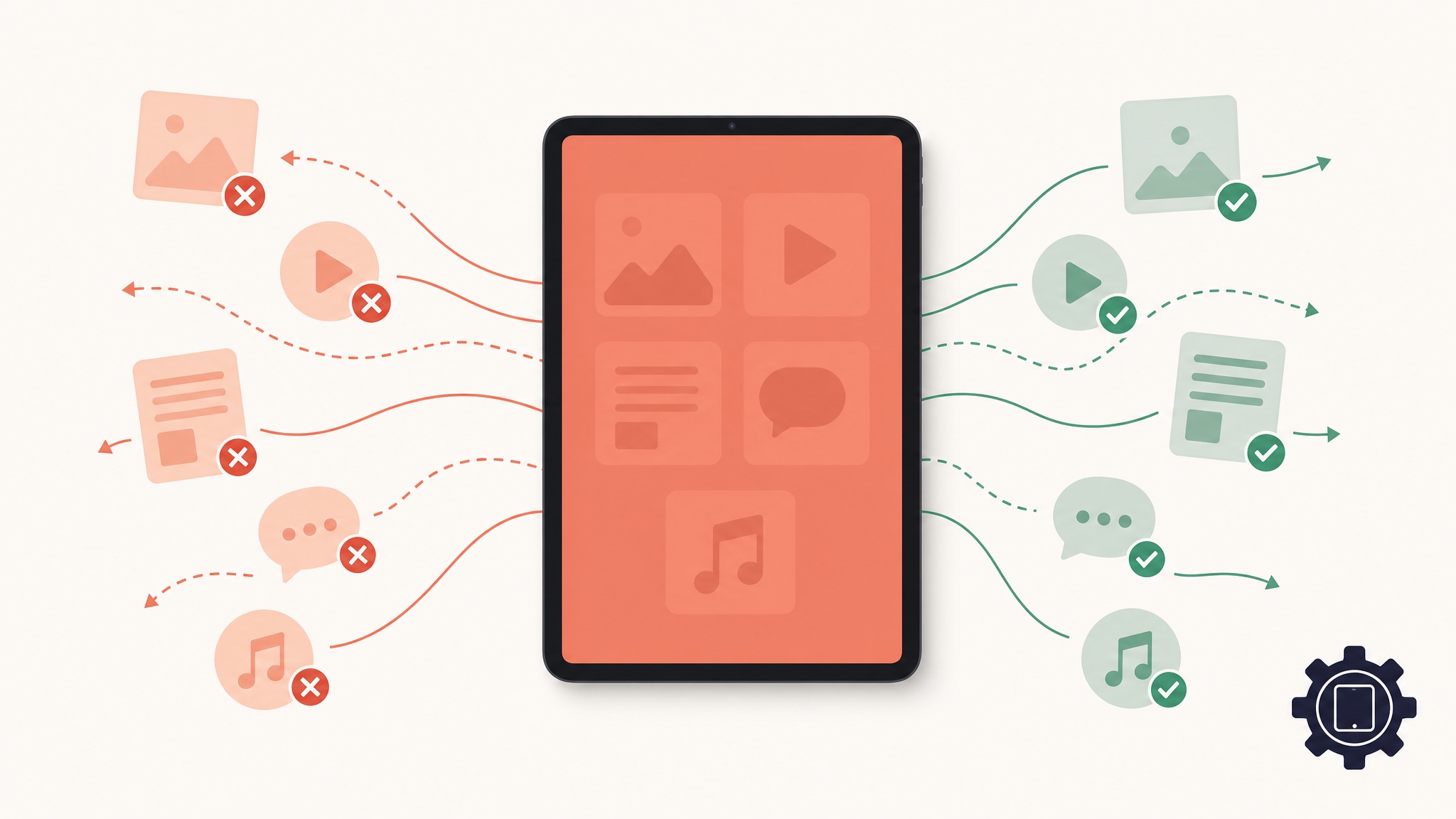
iPads are the hardest devices in K-12 to filter — and it's not even close.
Chromebooks have Google Admin Console, forced Chrome extensions, and a single-browser architecture. Windows devices have native agent support and group policy. But iPads? Apple's locked-down ecosystem, sandboxed apps, and privacy-first design philosophy make every traditional filtering approach either incomplete, battery-destroying, or both.
If you manage an iPad fleet in 2026 and your web filter wasn't purpose-built for iOS, there's a very good chance students are browsing unfiltered right now. This guide explains why iPad filtering is fundamentally different, compares the three architectural approaches available today, and walks you through deploying the only approach that actually works: cloud proxy-based SSL inspection.
Let's get into it.
Why iPad Filtering Is Fundamentally Different
Before we talk solutions, you need to understand why iPads are a special challenge. If you're coming from the Chromebook world — or even Windows — the iPad filtering landscape is going to feel alien.
No Browser Extensions
On Chromebooks, web filtering is straightforward: deploy a Chrome extension via Google Admin Console, and it intercepts every web request inside the browser. The extension API gives filters deep visibility into URLs, page content, and browsing behavior.
iPads have no equivalent. Safari doesn't support extensions that can intercept and block web requests in real time. There's no "iPad Admin Console" that lets you force-install a filtering extension into Safari the way Google Admin lets you force-install into Chrome.
This single architectural difference eliminates the entire category of extension-based filters (GoGuardian, Securly's original architecture) from working effectively on iPads.
Sandboxed Apps
iOS enforces strict app sandboxing. Each app runs in its own container with no visibility into what other apps are doing. A filtering app installed on an iPad cannot inspect traffic from Safari, Chrome, YouTube, or any other app — iOS simply doesn't allow it.
This means the "install a filtering app" approach that works on Windows and Android is fundamentally broken on iPads. The filtering app can only see its own traffic.
No Built-In Admin Filtering Console
Chromebooks have Google Admin Console — a centralized management platform where IT admins can push proxy settings, block extensions, enforce SafeSearch, and manage content policies across thousands of devices from a single dashboard.
Apple has no equivalent admin filtering console. Apple Business Manager and Apple School Manager handle device enrollment and app distribution, but they provide zero content filtering capabilities. The filtering has to come from a third-party solution, deployed through MDM.
Supervised Mode Limitations
Apple's Supervised Mode (required for most MDM management features) does provide a Content Filter payload in iOS configuration profiles. But it's severely limited:
- It only supports URL-based allow/deny lists — no content analysis, no AI detection, no category-based filtering
- The built-in iOS content filter has a hard limit on the number of URLs you can block
- It cannot perform SSL/TLS inspection — all HTTPS content is invisible
- It doesn't support per-user policies — the filter applies to the device, not the student
- There are no reporting or logging capabilities — you have no visibility into what was blocked or why
Supervised Mode's built-in content filter is better than nothing, but it's nowhere near sufficient for CIPA compliance or meaningful content filtering.
Privacy Restrictions and VPN Complications
iOS is designed to protect user privacy aggressively. This creates specific challenges for school web filtering:
- App Transport Security (ATS) requires HTTPS for all connections by default, meaning you need TLS inspection capability to see what students are accessing
- VPN on-demand rules can conflict with filtering profiles, causing connectivity issues
- iOS updates frequently change networking behavior without warning, breaking VPN-based filter configurations
- iCloud Private Relay (available on personal devices) routes traffic through Apple's servers, bypassing network-level filters entirely
Bottom line: Every approach that works well on Chromebooks or Windows — browser extensions, endpoint agents, simple DNS filtering — hits fundamental architectural walls on iPads. Effective iPad filtering requires a purpose-built approach.
The 3 Approaches to iPad Web Filtering (Compared)
There are exactly three ways to filter web content on school iPads. Each has dramatically different capabilities, and only one provides comprehensive coverage.
1. DNS-Based Filtering
How it works: The MDM pushes a DNS configuration profile to iPads, pointing DNS resolution to a filtering DNS server. When a student types a URL, the DNS lookup is intercepted and blocked domains return a block page IP.
Examples: Cisco Umbrella (OpenDNS), CleanBrowsing, Cloudflare Gateway for Education
Pros:
- Extremely simple to deploy (one MDM profile)
- Zero battery impact
- Works across all apps (Safari, Chrome, YouTube, etc.)
- No certificate deployment required
Cons:
- Domain-level only — cannot filter by URL path. You block ALL of YouTube or NONE of it. You can't allow educational channels while blocking YouTube Shorts.
- Invisible to HTTPS content — no ability to inspect encrypted traffic, which is 99%+ of all web traffic in 2026
- Easily bypassed by DNS-over-HTTPS (DoH) — Safari supports DoH natively, and students can enable it in Settings
- No per-user policies — filtering is device-level, not student-level
- No content analysis — a compromised educational site serving malware or inappropriate content passes right through
- No reporting granularity — you know a domain was queried, not what was accessed
DNS filtering was adequate in 2015. In 2026, it's a baseline layer — not a solution.
2. VPN-Based Filtering
How it works: The MDM installs a VPN profile that tunnels all device traffic through a cloud filtering endpoint. The VPN server inspects traffic, applies content policies, and blocks or allows requests.
Examples: Securly (SmartPAC/VPN mode), Lightspeed Relay (legacy), ContentKeeper
Pros:
- Can inspect full URLs (not just domains)
- Filters traffic from all apps
- Can support per-user policies if the VPN authenticates each student
Cons:
- Devastating battery drain — maintaining a persistent VPN connection is the single biggest battery killer on iOS. Teachers and students constantly complain about iPads dying by 2pm.
- "VPN Connected" banner — iOS displays a permanent VPN indicator in the status bar, which confuses users and generates constant support tickets
- Profile conflicts — VPN profiles frequently conflict with other MDM profiles, Wi-Fi configurations, and captive portal networks
- Connection drops — iOS aggressively manages VPN connections to save battery. When the VPN drops, the device is unfiltered until it reconnects. Students learn to trigger airplane mode to force disconnects.
- Split tunneling risks — if the VPN is configured for split tunneling (to reduce battery drain), some traffic bypasses the filter entirely
- iOS update breakage — Apple regularly changes VPN behavior in iOS updates, breaking filtering configurations without warning
VPN-based filtering is the approach most legacy vendors defaulted to when they realized extensions don't work on iPads. It technically filters, but the operational cost — battery drain, support tickets, connectivity issues — makes it unsustainable for large iPad deployments.
From an IT director we talked to: "We deployed [VPN-based filter] on 800 iPads. Within a month, we had 200+ tickets about dead batteries, Wi-Fi issues, and the VPN disconnecting in the middle of state testing. We ripped it out."
3. Proxy-Based SSL Inspection (KyberGate's Approach)
How it works: The MDM pushes a PAC (Proxy Auto-Configuration) file and a root CA certificate to each iPad. All HTTP/HTTPS traffic is automatically routed through KyberGate's cloud proxy network. The proxy performs real-time SSL inspection, URL categorization, content analysis, and policy enforcement — then forwards clean traffic to the destination.
How it's different from VPN: A PAC proxy is NOT a VPN. It uses iOS's native HTTP proxy support, which is built into the operating system's network stack. There's no VPN tunnel, no VPN banner, no persistent connection overhead, and no battery drain.
Pros:
- Zero battery impact — native proxy support uses the same network stack as normal browsing; no additional overhead
- No VPN banner — students and teachers see no indication that traffic is being filtered
- Full SSL inspection — the proxy decrypts, inspects, and re-encrypts HTTPS traffic, providing complete visibility into encrypted content
- Full URL path filtering — block
youtube.com/shortswhile allowingyoutube.com/edu - Real-time AI content analysis — pages are analyzed for harmful content, not just matched against URL databases
- Per-user policies — device-to-student identity mapping enables age-appropriate filtering (elementary vs. high school)
- Cannot be bypassed — the PAC file is enforced at the OS level by MDM; students cannot change proxy settings without the MDM passcode
- No profile conflicts — proxy settings coexist cleanly with Wi-Fi, VPN (if used for other purposes), and other MDM configurations
- iOS update resistant — PAC file proxy support is a stable, decades-old HTTP standard that Apple has no reason to change
Cons:
- Requires CA certificate deployment (one-time setup via MDM)
- Adds ~5-15ms latency per request (imperceptible to users)
- Requires reliable multi-region proxy infrastructure (KyberGate runs 8 regions with automatic failover)
This is the approach KyberGate was built on from day one. It's the same architectural model used by enterprise security solutions like Zscaler and iboss, but purpose-built for K-12 with school-specific features like game detection, classroom sync, and KyberPulse safety alerts.
How KyberGate Filters iPads: The Technical Architecture
Understanding how the proxy-based approach works end-to-end helps you evaluate whether it's right for your fleet. Here's the complete traffic flow:
Step 1: MDM Pushes Configuration
Your MDM (Jamf Pro, Mosyle, Apple Business Manager, or any MDM that supports managed configuration profiles) pushes two payloads to each iPad:
- Global HTTP Proxy payload — contains the PAC file URL (e.g.,
https://proxy.kybergate.com/pac/YOUR-ORG-ID) - Certificate payload — installs KyberGate's root CA certificate as a trusted certificate authority
These payloads are part of the device's managed configuration profile and cannot be removed by students without the MDM management password.
Step 2: PAC File Routes Traffic
When any app on the iPad makes an HTTP or HTTPS request, iOS consults the PAC file to determine whether to route the request through the proxy. The PAC file is a small JavaScript function that returns routing instructions:
- Proxy: Routes the request through KyberGate's nearest cloud proxy server
- DIRECT: Allows the request to bypass the proxy (used for
*.kybergate.com,*.apple.com, and other domains that must not be proxied)
The PAC file is hosted on KyberGate's CDN and cached locally on the device, so it works even if the CDN is temporarily unreachable.
Step 3: SSL Inspection at the Proxy
When the request arrives at KyberGate's cloud proxy:
- TLS Handshake: The proxy terminates the TLS connection from the iPad and establishes a new TLS connection to the destination server
- Certificate Generation: The proxy generates a certificate for the destination domain, signed by KyberGate's root CA (which the iPad trusts because the CA cert was deployed via MDM)
- Content Inspection: The proxy inspects the decrypted HTTP response using KyberGate's multi-layer detection system:
- Layer 1: URL Categorization — domain and path checked against categorization databases (updated hourly)
- Layer 2: Reputation Scoring — newly registered or uncategorized domains scored for risk
- Layer 3: Text Analysis — NLP classifies page text for harmful content
- Layer 4: Structural Analysis — page structure analyzed for proxy/bypass tool patterns
- Layer 5: Embedded Content — iframes, scripts, and media elements analyzed independently
- Layer 6: Behavioral Detection — browsing patterns flagged for bypass attempts
- Layer 7: Game Detection — proprietary engine catches HTML5 games, WebGL games, emulators, and unblocked games sites
- Layer 8: AI Chat Monitoring — prompts to ChatGPT, Gemini, Claude, and other AI tools analyzed for concerning content
- Policy Enforcement: The request is allowed, blocked, or flagged based on the student's assigned policy
- Re-encryption: Clean responses are re-encrypted and forwarded to the iPad
Step 4: Logging and Alerting
Every request is logged with:
- Device identifier (UDID)
- Assigned student (via MDM-to-user mapping)
- URL, domain, and category
- Action taken (allowed/blocked/flagged)
- Timestamp
Safety-critical events (self-harm searches, violent threats, predatory communication patterns) trigger KyberPulse alerts — real-time notifications to designated counselors, administrators, or SROs via email and SMS.
MDM Integration: Jamf Pro, Mosyle, and Apple Business Manager
KyberGate works with any MDM that supports iOS managed configuration profiles. Here's how the integration works with the three most common MDMs in K-12:
Jamf Pro
Jamf Pro is the most widely deployed Apple MDM in education. Integration requires two configuration profiles:
-
Global HTTP Proxy profile:
- Navigate to Computers & Devices → Configuration Profiles → New
- Add a Global HTTP Proxy payload
- Set Proxy Type to Auto
- Enter the PAC URL:
https://proxy.kybergate.com/pac/YOUR-ORG-ID - Scope to your student device Smart Groups
-
Certificate profile:
- Add a Certificate payload to the same or a separate profile
- Upload the KyberGate root CA certificate (downloaded from your KyberGate dashboard)
- Scope to the same Smart Groups
Profiles deploy automatically to targeted devices within minutes.
Mosyle
Mosyle is increasingly popular in K-12 for its education-specific features and competitive pricing:
- Navigate to Management → Profiles → Add Profile
- Select Wi-Fi & Network and configure the HTTP Proxy section:
- Proxy Type: Auto Configuration
- PAC URL:
https://proxy.kybergate.com/pac/YOUR-ORG-ID
- Add a Certificates profile and upload the KyberGate root CA
- Assign to your student device groups
Apple Business Manager + Any MDM
If you use Apple Business Manager (ABM) with a different MDM (Kandji, Addigy, SimpleMDM, etc.), the process is the same:
- Create a managed configuration profile with a Global HTTP Proxy payload (PAC URL)
- Create a certificate profile with the KyberGate root CA
- Deploy to student device enrollment groups
Key requirement: Devices must be enrolled in Supervised Mode for the Global HTTP Proxy payload to be enforced. If your iPads are not supervised, the proxy setting becomes a suggestion — students can change it in Settings. Ensure all school iPads are enrolled as supervised devices through ABM/ASM + DEP.
iPad-Specific Features That Set KyberGate Apart
KyberGate isn't just a generic web filter deployed to iPads — it was built with iPad-specific challenges in mind. Here are the features that matter most for iPad fleets:
Game Detection Engine
Gaming is the #1 filtering complaint from teachers managing iPad classrooms. Students find unblocked games sites, bookmark HTML5 game URLs, share game links via AirDrop, and play WebGL-powered games that look like regular web pages.
KyberGate's game detection engine catches games that URL databases miss:
- HTML5 game canvas detection — identifies
<canvas>elements with game-like rendering patterns - WebGL fingerprinting — detects 3D game engines even on domains that aren't categorized as gaming
- Game site discovery — structural analysis identifies new unblocked games sites on first visit, before they appear in any categorization database
- Emulator detection — catches browser-based console emulators (GBA, SNES, NES) that students use on iPads
AI Chat Monitoring
Students use ChatGPT, Google Gemini, Anthropic Claude, and dozens of other AI chatbots on iPads — often through Safari rather than dedicated apps. KyberGate's SSL inspection sees the actual prompts students submit:
- Concerning prompt detection — flags prompts related to self-harm, violence, weapons, drugs, or sexual content
- Bypass attempt detection — catches students asking AI to "act as a proxy" or "fetch content from" blocked URLs
- Academic integrity monitoring — logs AI usage patterns for teacher visibility (optional)
- Configurable AI policies — block specific chatbots, allow approved ones, or monitor all with alerts
Classroom Sync
KyberGate integrates with classroom management workflows:
- Teacher override portal — teachers can temporarily unblock sites for their class period without contacting IT
- Schedule-based policies — different filtering rules during class time vs. lunch vs. after school
- Per-class policies — art class gets different YouTube access than math class
- Real-time tab visibility — teachers can see what each student is browsing (coming via the KyberClassroom teacher portal)
KyberPulse Safety Alerts
KyberPulse monitors browsing activity across all filtered devices for safety-critical signals:
- Self-harm and suicide — searches, page visits, and AI prompts related to self-harm trigger immediate alerts
- Violence and threats — content indicating potential violence or threats to self/others
- Cyberbullying patterns — repeated targeting, harassment language, social media pile-on behavior
- Predatory communication — patterns consistent with grooming or exploitation
Alerts are delivered in real time via email and SMS to designated safety contacts (counselors, principals, SROs). Learn more about KyberPulse.
Setting Up iPad Web Filtering: 5 Steps from MDM to Active Filtering
Here's the concrete, step-by-step process to deploy KyberGate on your iPad fleet. Total time: about 15 minutes of admin work, plus MDM profile propagation time.
Step 1: Create Your KyberGate Organization
- Visit kybergate.com/pilot and sign up for a free 30-day pilot (up to 25 devices, no credit card)
- Create your organization in the KyberGate dashboard
- Set your base filtering policy:
- Recommended starter: Block Adult, Malware, Gambling, Weapons, Drugs. Monitor Social Media, Gaming, AI Tools.
- Customize categories based on your district's Acceptable Use Policy
- Note your Organization ID and PAC file URL from the dashboard
Step 2: Download and Deploy the CA Certificate
- In your KyberGate dashboard, navigate to Settings → Certificates
- Download the root CA certificate file (
.cerformat) - In your MDM:
- Create a new certificate profile
- Upload the KyberGate root CA certificate
- Mark it as a trusted root certificate authority
- Scope it to your student iPad device group
- Push the profile — it installs silently on supervised devices
Step 3: Configure the PAC Proxy Profile
- In your MDM, create a new configuration profile
- Add a Global HTTP Proxy payload:
- Proxy Type: Auto
- PAC URL:
https://proxy.kybergate.com/pac/YOUR-ORG-ID - (Replace YOUR-ORG-ID with the ID from your dashboard)
- Scope to the same student iPad device group
- Push the profile
Important: The Global HTTP Proxy payload requires Supervised Mode. Unsupervised iPads can ignore this setting. Ensure all school iPads are enrolled as supervised through Apple Business Manager / Device Enrollment Program (DEP).
Step 4: Configure Identity Mapping
For per-student policies, KyberGate needs to know which student is using each iPad:
- In the KyberGate dashboard, navigate to Settings → Identity
- Choose your identity source:
- MDM integration — KyberGate maps device UDIDs to assigned users via MDM API
- Clever SSO — if your district uses Clever, student identity syncs automatically
- Google Workspace — student identity pulled from Google directory
- Manual assignment — upload a CSV mapping devices to students
- Configure user groups (e.g., Elementary, Middle School, High School) and assign appropriate policies
Step 5: Test and Verify
- Pick a supervised iPad enrolled with the test profiles
- Open Safari and visit a known-blocked site (e.g., a gambling or gaming site) — you should see the KyberGate block page
- Visit an HTTPS site and check the certificate details — the issuer should show KyberGate's CA
- Open the KyberGate dashboard and verify browsing activity appears for the test device
- Test common bypass methods:
- Change DNS settings → Should have no effect (traffic goes through proxy regardless)
- Try a web-based proxy site → Should be blocked by structural analysis
- Toggle airplane mode on/off → Filtering should resume immediately when connectivity returns
- Verify KyberPulse by searching for a test safety term (configured in your dashboard) and confirming the alert fires
Common iPad Filtering Challenges (and How to Solve Them)
Even with proxy-based filtering deployed, iPad-specific issues come up. Here's how to handle them.
Certificate Trust Prompts
Problem: Students or teachers see a certificate trust prompt or "This Connection Is Not Private" warnings.
Solution: This happens when the CA certificate profile hasn't been installed correctly. Verify:
- The certificate profile is scoped to the device (not just the user)
- The profile is set to install the certificate as a trusted root CA, not just a certificate
- The device has received and installed the profile (check MDM console for profile status)
- On supervised devices, certificate trust should be automatic — no user action required
Captive Portal (Guest Wi-Fi) Issues
Problem: When connecting to hotel, airport, or conference Wi-Fi, the captive portal page won't load because the proxy intercepts it.
Solution: KyberGate's PAC file is configured to automatically detect captive portal domains and route them DIRECT (bypassing the proxy). The standard captive portal detection domains (captive.apple.com, *.apple.com/library/test, etc.) are excluded by default. If you encounter a non-standard captive portal:
- Connect the iPad to a personal hotspot temporarily
- Complete the captive portal sign-in
- Once authenticated, switch back to the school/conference Wi-Fi — the proxy will resume
App Store vs. Safari Filtering
Problem: Content filtering works in Safari but students access inappropriate content through in-app browsers or direct app content.
Solution: KyberGate's PAC proxy filters ALL HTTP/HTTPS traffic from the device, not just Safari. Any app that uses standard iOS networking (which is virtually all apps) has its traffic routed through the proxy. This includes:
- Chrome, Firefox, Edge, and other third-party browsers
- YouTube app (including Shorts)
- Social media apps (Instagram, TikTok web views, Snapchat Discover)
- In-app browsers (links opened from within any app)
Exception: Some apps use certificate pinning, which prevents SSL inspection of their specific API traffic. Common examples include banking apps and some messaging apps. KyberGate's PAC file routes known certificate-pinned domains DIRECT to prevent app breakage.
Shared iPad vs. 1:1 iPad Differences
Problem: Filtering configuration differs for shared iPad carts vs. 1:1 assigned devices.
Solution:
- 1:1 iPads: Deploy profiles to device groups. Identity mapping ties each device to an assigned student for per-user policies.
- Shared iPads (iPad cart model): Deploy profiles to the shared devices. If using Apple's Shared iPad feature (managed Apple IDs), KyberGate can map the currently signed-in student for per-user policies. Without Shared iPad, use a single "shared device" policy that applies the most restrictive appropriate settings.
Battery Life Concerns
Problem: Teachers/parents worry that web filtering drains iPad battery.
Solution: KyberGate's PAC proxy approach has zero measurable battery impact. Unlike VPN-based filters that maintain a persistent tunnel connection (consuming 15-25% additional battery per day), PAC proxy routing uses iOS's built-in HTTP stack. There is no additional background process, no keepalive packets, and no tunnel encryption overhead. If someone complains about battery life, the filter is not the cause.
iOS Update Compatibility
Problem: Major iOS updates (e.g., iOS 19) might break filtering.
Solution: PAC file proxy support is a foundational iOS networking feature that has been stable since iOS 6. Apple has no incentive to remove it — enterprise customers depend on it. KyberGate has maintained uninterrupted filtering through every iOS major update since launch. When new iOS versions are announced at WWDC, KyberGate tests against developer betas within 48 hours and publishes compatibility reports.
KyberGate vs. Other iPad Web Filters
Here's how KyberGate compares to the most common iPad filtering solutions schools use today:
| Feature | KyberGate | GoGuardian | Securly | Lightspeed |
|---|---|---|---|---|
| iPad filtering method | PAC proxy + SSL inspection | DNS + limited app | VPN-based | VPN/DNS hybrid |
| Full URL path filtering | ✓ | ✗ (domain only) | Partial | Partial |
| SSL/HTTPS inspection | ✓ | ✗ | ✓ (via VPN) | ✓ (via VPN) |
| Battery impact | None | None | High (VPN) | Moderate |
| VPN banner on iPad | No | No | Yes | Yes |
| Game detection engine | 8-layer AI | Basic categories | Basic categories | Basic categories |
| AI chat monitoring | ✓ | ✗ | ✗ | Limited |
| Works in all apps | ✓ (all HTTP/HTTPS) | ✗ (Safari only via DNS) | ✓ (via VPN) | ✓ (via VPN) |
| iOS update resilience | High (PAC = stable API) | High | Low (VPN changes) | Low (VPN changes) |
| Pricing | $5/device/year | $8-12/device | $5-10/device | $8-15/device |
The key differentiator: KyberGate is the only K-12 web filter that provides full SSL inspection on iPads without using a VPN. This eliminates the battery drain, connectivity issues, and profile conflicts that plague every VPN-based competitor.
CIPA Compliance for iPad Web Filtering
If your district receives E-Rate funding, your iPad content filter must meet CIPA requirements. Here's how KyberGate satisfies each:
Technology Protection Measure
CIPA requires blocking access to obscene material, CSAM, and content harmful to minors. KyberGate's SSL inspection + AI content analysis provides comprehensive coverage across all three categories — on every app, not just Safari.
Monitoring and Reporting
CIPA requires the ability to monitor online activities of minors. KyberGate logs all browsing activity by device and student, provides filterable activity reports, and generates audit-ready compliance documentation.
Authorized Override
CIPA requires that authorized staff can disable filtering for bona fide research. KyberGate supports teacher-level temporary unblock, admin-level category override, and full audit logging of all override actions.
Internet Safety Policy Enforcement
KyberGate's policy engine maps directly to your district's Internet Safety Policy, with per-grade, per-device, and per-schedule policy enforcement.
E-Rate auditors want evidence. KyberGate's compliance reports include timestamped logs showing that filtering was active, what was blocked, and that override capabilities were available — exactly what auditors look for during E-Rate reviews.
Frequently Asked Questions
What is the best web filter for school iPads in 2026?
The best iPad web filter in 2026 uses proxy-based SSL inspection deployed via MDM, not VPN tunneling or DNS-only filtering. Proxy-based filters like KyberGate provide full HTTPS inspection, zero battery impact, URL path-level filtering, and AI-powered content analysis — without the connectivity issues and battery drain of VPN-based alternatives. Look for a solution with multi-region proxy infrastructure, game detection, and safety alerting built in.
How do I filter iPads at school without a VPN?
Use a PAC (Proxy Auto-Configuration) file deployed through your MDM (Jamf Pro, Mosyle, etc.). The PAC file tells the iPad to route all web traffic through a cloud proxy server that performs content filtering and SSL inspection. This is NOT a VPN — it uses iOS's native HTTP proxy support, which has zero battery impact and no VPN banner. KyberGate uses this approach and deploys in about 15 minutes.
Does iPad web filtering drain battery?
It depends on the approach. VPN-based filters drain 15-25% additional battery per day because they maintain a persistent tunnel connection. DNS-based filters have zero battery impact but can't inspect HTTPS content. PAC proxy-based filters (like KyberGate) have zero battery impact because they use iOS's built-in HTTP stack — no background process, no keepalive packets, no tunnel overhead.
Can students bypass iPad web filters?
It depends on your filter architecture. DNS-only filters can be bypassed with DNS-over-HTTPS or by changing DNS settings (if the device isn't supervised). VPN filters can be bypassed by toggling airplane mode or exploiting VPN reconnection delays. PAC proxy filters deployed via MDM on supervised iPads are extremely difficult to bypass — students cannot change proxy settings without the MDM passcode, and all HTTP/HTTPS traffic is forced through the proxy regardless of which app or browser they use.
Do iPad web filters work with all apps or just Safari?
DNS filters typically work across all apps (since all apps use DNS), but they can only filter at the domain level. VPN filters work across all apps but cause battery drain. PAC proxy filters work across all apps — any app that uses standard iOS HTTP/HTTPS networking (which is virtually all apps) has its traffic routed through the proxy. This includes Safari, Chrome, YouTube, social media apps, and in-app browsers.
What MDM do I need for iPad web filtering?
You need any MDM that supports iOS managed configuration profiles with a Global HTTP Proxy payload and Certificate payload. The most common in K-12 are Jamf Pro, Mosyle, Kandji, and SimpleMDM. Devices must be enrolled in Supervised Mode (through Apple Business Manager / Device Enrollment Program) for the proxy setting to be enforced. KyberGate provides step-by-step MDM integration guides for all major platforms.
How much does iPad web filtering cost for schools?
iPad web filtering pricing ranges from $5-15 per device per year depending on the vendor and feature set. KyberGate plans start at $5/device/year (Basic) and $9/device/year (Pro), which include full SSL inspection, AI content analysis, game detection, safety alerting, and CIPA compliance reporting. Start a free 30-day pilot with up to 25 devices — no credit card required.
Wrapping Up
iPad web filtering in 2026 isn't the same challenge as Chromebook filtering or Windows filtering. It's harder. Apple's sandboxed architecture, privacy-first design, and lack of a built-in admin filtering console mean that most web filters either don't work on iPads, work poorly, or work at the cost of battery life and teacher sanity.
The solution is proxy-based SSL inspection via PAC auto-configuration — the same enterprise-grade approach used by Fortune 500 companies, adapted for K-12 schools. It provides complete HTTPS visibility, filters all apps (not just Safari), has zero battery impact, and can't be bypassed by students on supervised devices.
KyberGate was purpose-built for this. Our PAC proxy network runs across 8 regions with automatic failover. Our detection engine catches games, AI misuse, and safety threats that URL-only filters miss. And our pricing starts at $5/device/year — less than half of what most schools pay for filters that don't even work properly on iPads.
If you're managing an iPad fleet and your current filter is VPN-based, DNS-only, or simply not working, start a free pilot and see the difference in 15 minutes. Or book a demo and we'll walk you through the architecture live.
Questions about filtering your iPad fleet? Reach out at help.kybergate.com — our team responds within 2 hours during business days.