How to Set Up Web Filtering for a 1:1 iPad Program: The Complete 2026 Guide
Setting up web filtering for a school-wide 1:1 iPad program? This step-by-step guide covers MDM configuration, PAC proxy deployment, HTTPS inspection, and CIPA compliance for iPad fleets of any size.
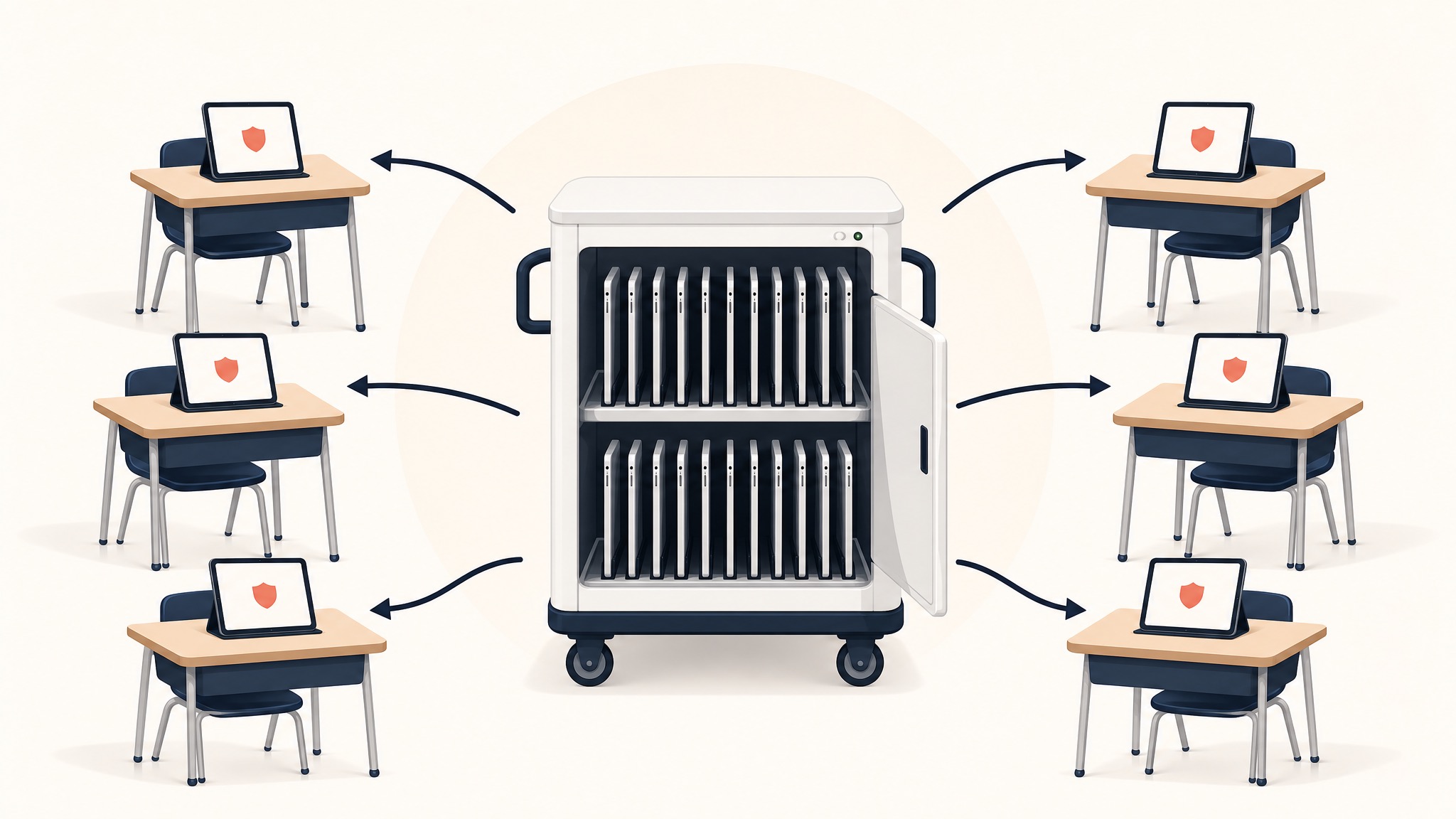
Running a 1:1 iPad program is one of the most impactful decisions a school district can make for student learning. It's also one of the most challenging from an IT perspective — especially when it comes to web filtering.
You need a solution that filters content on and off campus, doesn't destroy battery life, works with your existing MDM, meets CIPA compliance requirements for E-Rate funding, and actually stops students from bypassing it.
In this guide, we'll walk through exactly how to set up web filtering for a 1:1 iPad deployment, from initial architecture decisions to day-one rollout.
Step 1: Choose Your Filtering Architecture
Before you touch a single iPad, you need to decide how your filter will work. There are three main approaches, and the one you pick determines everything else.
Option A: On-Device Agent (App-Based Filtering)
This approach installs a filtering app directly on every iPad. The app intercepts network traffic on the device itself.
✅ Pros:
- Works on any network (home, school, cellular)
- Can monitor app usage
❌ Cons:
- Significant battery drain (15–25% in most cases)
- Requires per-device installation and updates
- Can conflict with other VPN/networking apps
- Students with technical knowledge can sometimes disable it
- Apple's iOS sandboxing limits what third-party apps can inspect
Option B: DNS-Based Filtering
DNS filtering works by redirecting DNS queries through a filtering service. When a student tries to visit a blocked domain, the DNS resolver returns a block page.
✅ Pros:
- Easy to deploy (just change DNS settings)
- Low overhead
❌ Cons:
- Cannot inspect encrypted (HTTPS) traffic — virtually all traffic is HTTPS in 2026
- Can only filter at the domain level (can't block specific pages)
- Easily bypassed by changing DNS settings or using DNS-over-HTTPS
- No visibility into actual content
Option C: Proxy-Based Filtering (Recommended)
Proxy-based filtering routes all web traffic through a cloud proxy server that performs full HTTPS/SSL inspection. This is the approach used by KyberGate, and it's the architecture we recommend for any serious 1:1 deployment.
✅ Pros:
- Full HTTPS inspection (sees actual content of encrypted pages)
- Zero battery impact (filtering happens in the cloud, not on-device)
- Deployed via MDM in minutes (single PAC file profile push)
- Cannot be uninstalled by students
- Policy updates happen server-side, instantly across all devices
- Works on and off campus
❌ Cons:
- Requires a trusted CA certificate on devices (standard MDM deployment)
- Depends on cloud proxy uptime (any reputable provider has 99.9%+ SLA)
For a deep dive on architecture, see: iPad Web Filtering Done Right: Why Proxy Beats DNS and On-Device Apps.
Step 2: Configure Your MDM
Once you've chosen proxy-based filtering, your MDM becomes the deployment mechanism.
Jamf Pro / Jamf School
- Create a Configuration Profile
- Add a Global HTTP Proxy payload
- Set Proxy Type to Auto (PAC)
- Enter your PAC URL — KyberGate provides a per-org PAC URL that Jamf substitutes with device-specific variables like email and UDID
- Add a Certificate payload with your filtering provider's CA certificate
- Scope the profile to your iPad device groups
- Deploy
Mosyle
- Go to Management > Profiles
- Create a new profile for iOS
- Add Global HTTP Proxy with PAC URL
- Add Certificate with CA cert
- Assign to device groups and push
Apple Business Manager + Apple Configurator
If you're using ABM without a third-party MDM, create a .mobileconfig file with the proxy and certificate payloads, upload to Apple Configurator, and deploy during device enrollment.
KyberGate provides ready-made MDM profiles for all three platforms. See our deployment guide for downloadable templates.
Step 3: Deploy the CA Certificate
For HTTPS inspection to work, every iPad needs to trust your filtering proxy's Certificate Authority. This is standard practice — every enterprise web filter uses this approach.
How it works:
- Your MDM pushes the CA certificate to all devices
- The certificate is automatically trusted (no user interaction required)
- When an iPad connects through the proxy, the proxy can decrypt, inspect, and re-encrypt HTTPS traffic
- The iPad sees the proxy's certificate and trusts it because the CA is in its trust store
Important: Apple domains (iCloud, App Store, Apple Push Notifications) should be excluded from proxy inspection. These use certificate pinning and will break if intercepted. Any well-configured PAC file handles this automatically.
Step 4: Set Up Your Filtering Policies
With the technical infrastructure in place, it's time to configure what gets filtered. Good filtering policy balances safety with educational access.
Grade-Level Policy Guidelines
Elementary (K–5)
- Social media → Block all
- YouTube → Allow YouTube Kids only
- Gaming → Block all
- AI chatbots → Block all
- Streaming → Block all
Middle School (6–8)
- Social media → Block during school hours
- YouTube → Allow with SafeSearch enforced
- Gaming → Block all
- AI chatbots → Block during school hours
- Streaming → Block all
High School (9–12)
- Social media → Allow with monitoring
- YouTube → Allow with SafeSearch enforced
- Gaming → Block during school hours
- AI chatbots → Allow with monitoring
- Streaming → Block during school hours
KyberGate offers pre-built policy templates for each grade level that you can customize to your district's needs.
SafeSearch Enforcement
Your filter should force SafeSearch on all major search engines — Google, Bing, YouTube Restricted Mode, and DuckDuckGo. This prevents students from finding inappropriate content through search results.
Game Detection
Gaming is consistently the #1 category of blocked content in schools. Static blocklists can't keep up — students find new "unblocked games" sites daily. You need AI-powered game detection that identifies gaming content even on unknown domains.
Step 5: Configure On-Campus vs. Off-Campus Filtering
One of the biggest challenges with 1:1 programs: iPads go home with students.
On-Campus: When a device is on your school network, it connects through your proxy automatically via the PAC file. You get full HTTPS inspection and content filtering.
Off-Campus: When a device is on a home WiFi network or cellular, the PAC file still routes traffic through the proxy. The filtering follows the device, not the network.
Why this matters for CIPA: E-Rate funding requires that you filter devices receiving E-Rate-funded internet service. If your iPads are funded through E-Rate, you need to demonstrate filtering both on and off campus. Learn more about CIPA compliance.
Step 6: Enable Student Safety Monitoring
Web filtering alone isn't enough. Students create concerning content inside "approved" apps like Google Docs, Gmail, and Google Drive.
KyberPulse adds a safety monitoring layer that scans Google Workspace content for:
- Self-harm and suicide ideation
- Cyberbullying patterns
- Violence and threats
- Substance abuse references
- Coded language and teen slang (40+ terms tracked)
This requires Google Workspace domain-wide delegation. It's a separate layer from web filtering but critical for comprehensive student safety. Read more: Beyond Web Filtering: How KyberPulse Keeps Students Safe.
Step 7: Test Before You Roll Out
Before deploying to your entire fleet, test with a small pilot group:
- Select 10–20 devices across different grade levels
- Push the MDM profile to just those devices
- Test for 1 week, verifying that educational sites work, blocked sites show the block page, SafeSearch is enforced, YouTube Restricted Mode is active, gaming sites are blocked, Apple services still work, and battery life is unaffected
- Review activity logs to check for false positives
- Adjust policies based on feedback from teachers and students
KyberGate offers a free 30-day pilot with full support for this testing phase.
Step 8: Roll Out and Monitor
Once testing is complete:
- Expand the MDM profile to all device groups
- Monitor the dashboard for the first week — watch for unusual block rates, bypass attempts, and connectivity issues
- Communicate with teachers — give them a way to report blocked educational sites
- Set up misclassification reporting so teachers can request site unblocks
Common Pitfalls to Avoid
Don't use agent-based filters on iPads. iOS sandboxing severely limits what third-party apps can do. You'll get incomplete filtering and battery drain. Here's why.
Don't rely on DNS filtering alone. It can't inspect HTTPS traffic, which is virtually all web traffic in 2026.
Don't forget bypass domains. Apple services, your MDM server, and certain educational platforms need to bypass the proxy.
Don't set it and forget it. Review activity logs weekly. Students constantly find new bypass techniques.
Don't skip the CA certificate. Without it, your proxy can't inspect HTTPS traffic, and your filter is essentially useless.
How Much Does It Cost?
KyberGate's pricing is transparent and published:
- Basic (web filtering): $5/device/year
- Pro (web filtering + student safety monitoring): $9/device/year
- Enterprise (5,000+ devices): Custom pricing
For a 1,000-device 1:1 program, that's $5,000–$9,000/year — significantly less than most competitors who often charge $8–15/device/year with additional implementation fees.
KyberGate is also E-Rate eligible (SPIN: 143055219), meaning eligible schools can get 20–85% off through the Universal Service Fund.
Ready to Get Started?
Setting up web filtering for a 1:1 iPad program doesn't have to be painful. With proxy-based architecture and MDM deployment, you can go from zero to fully filtered in under an hour.
Start a free 30-day pilot → — No credit card required. No sales call needed.
For funding strategy, use this E-Rate funding guide.
Ready to protect your students?
Deploy KyberGate in under 30 minutes. No hardware required.
Request a Demo